










 Seniorverse Navigate
Scheduling, Visit Notes, and Billing for Care Managers.
For Aging Life Care practices and private-pay home care. The office schedules and bills, the field works from a phone, and you pay for the hours of care you deliver, not for seats.
Thirty days free on Solo and Team. No card required.
How a visit moves through Navigate
One Visit, From the Calendar to the Invoice
Schedule the Visit
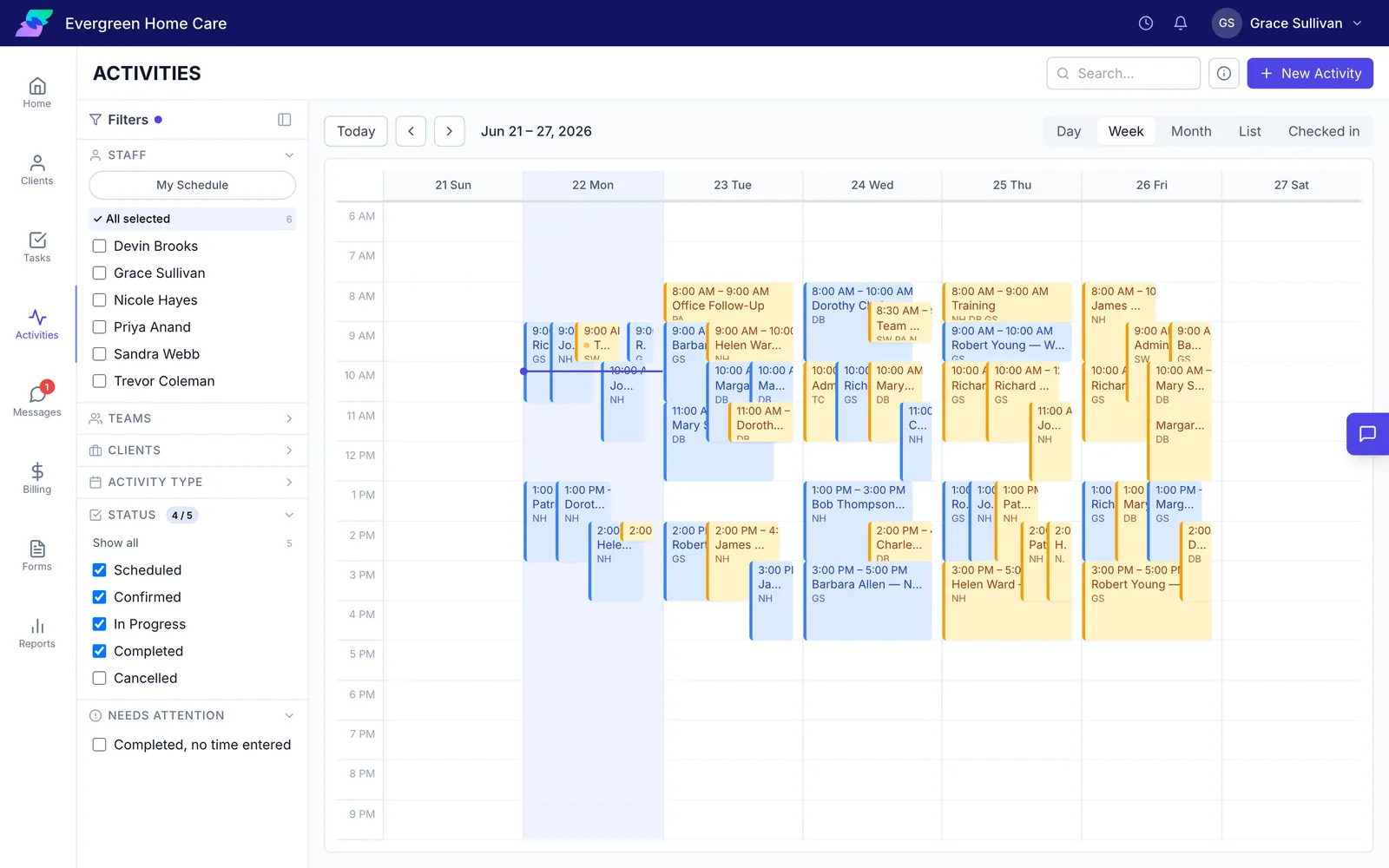
The office books the visit on the team calendar. Navigate shows who is free at that time and flags anyone who is already booked or on time off.
Check In From a Phone
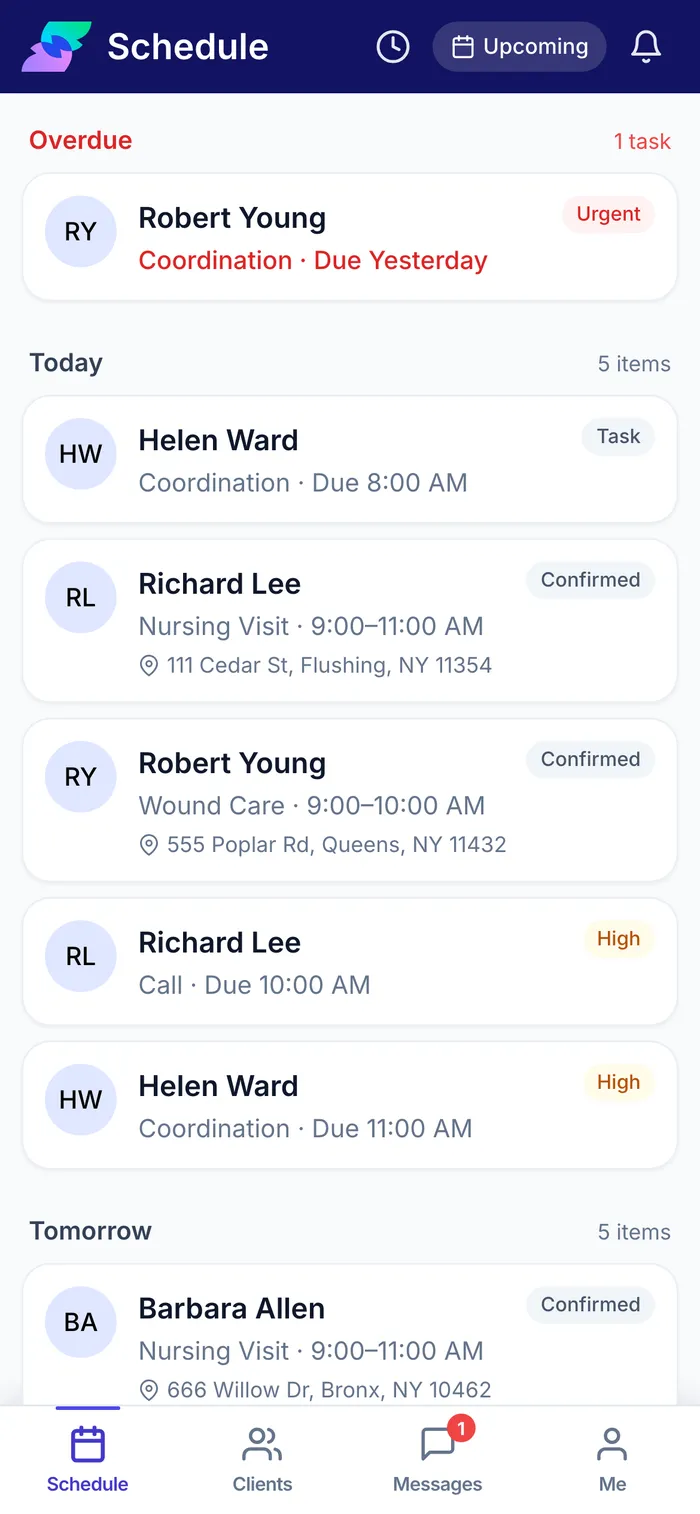
The care manager sees the visit on their phone with the address and the time. They check in when they arrive and check out when they leave, and the time is logged for them.
Record the Visit and Review the Note
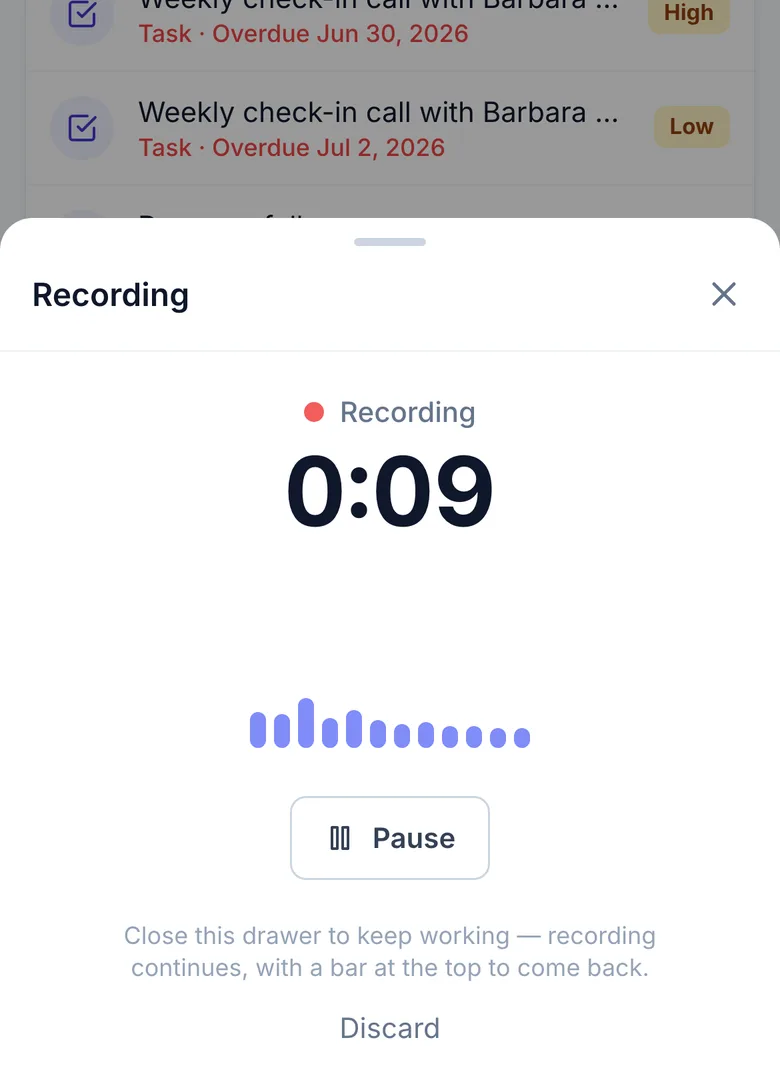
With the client’s agreement, the care manager records the conversation. Navigate drafts the visit note and suggests follow-ups, and nothing goes on the chart until they accept it. How recording works
Assign the Follow-Ups
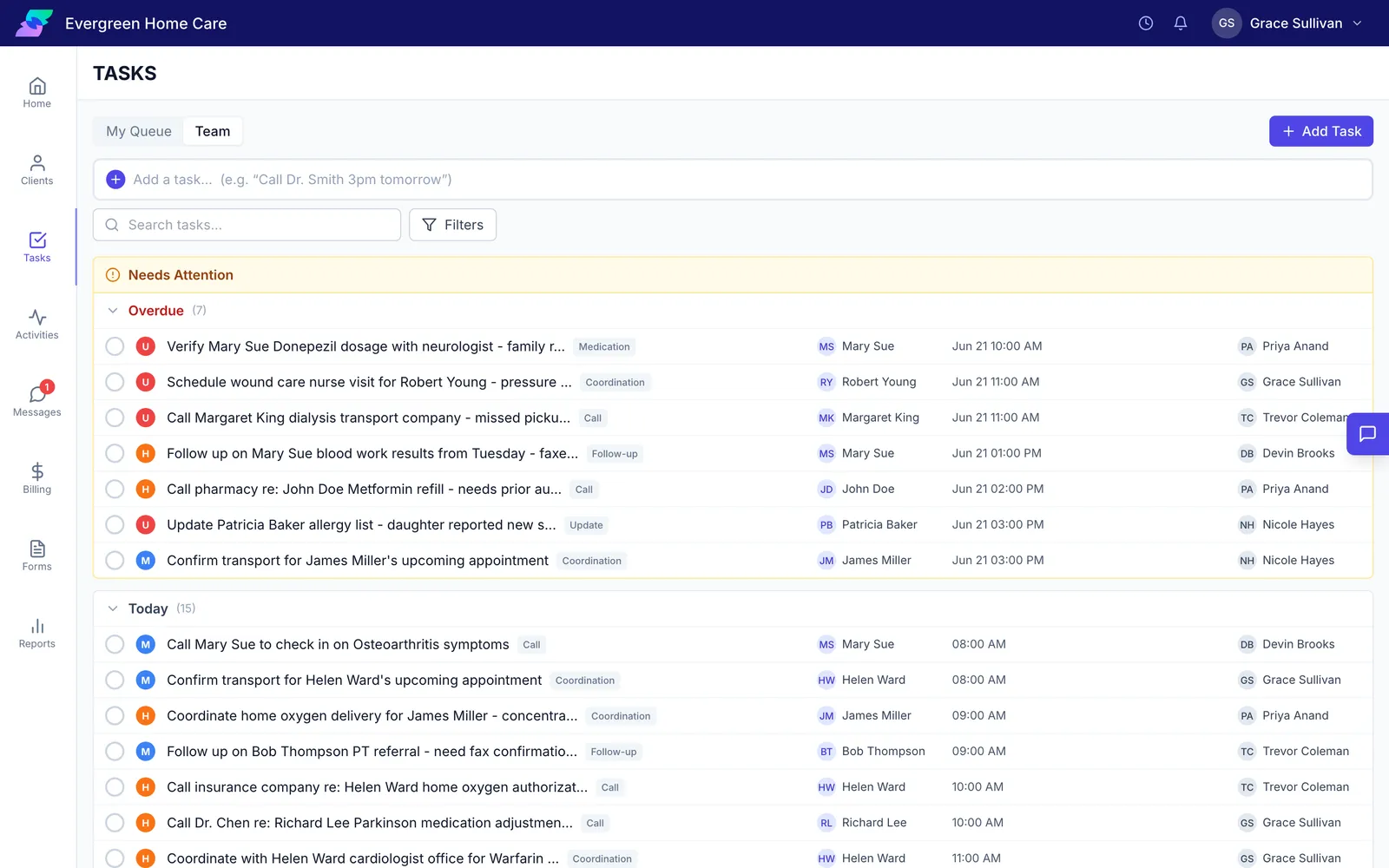
Each accepted follow-up becomes a task with an owner and a due date. Overdue tasks stay at the top of the list for the whole team.
Review the Time
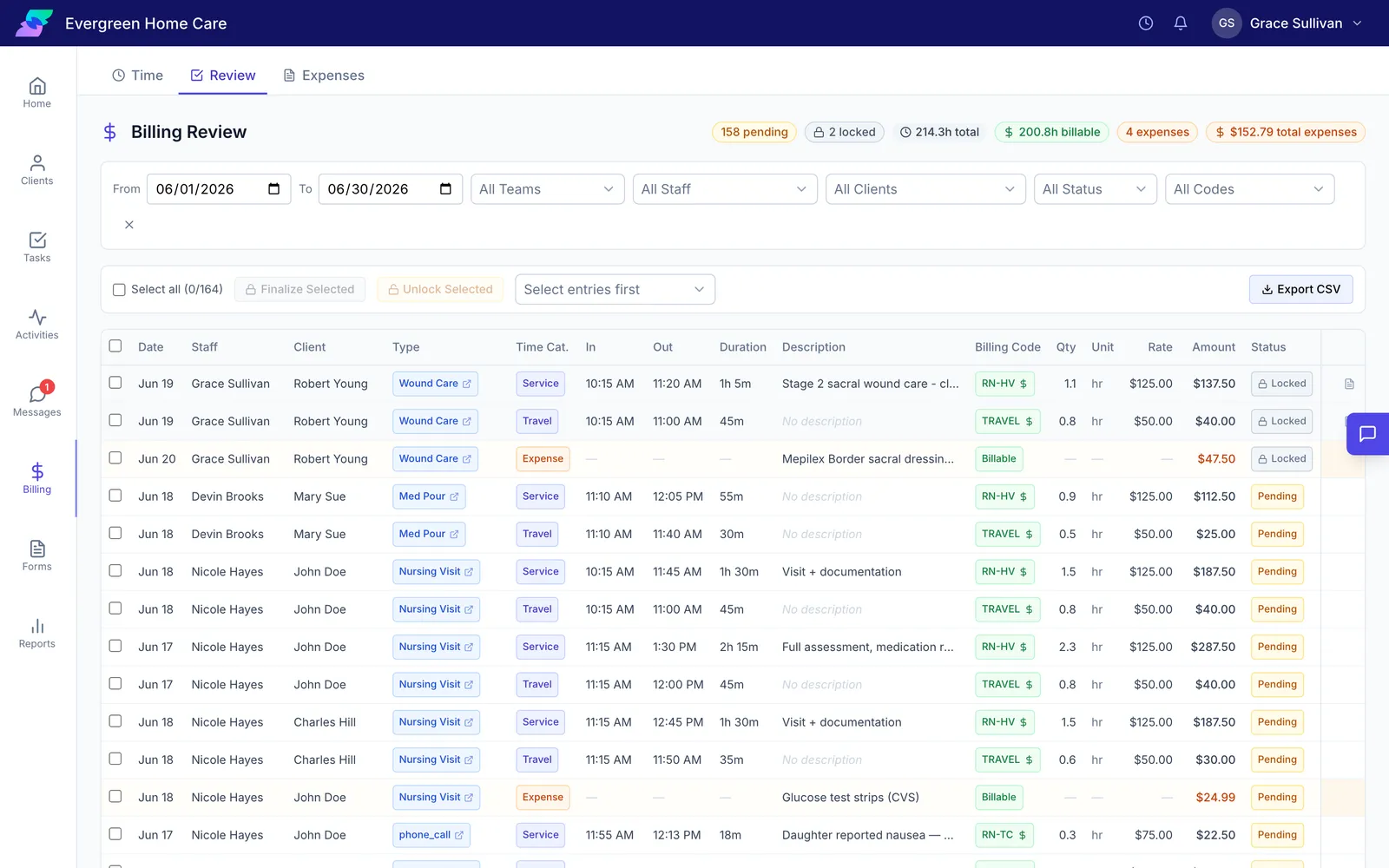
The visit's time arrives in billing review with its billing code and rate. The office corrects anything wrong and locks the rest, so the numbers cannot change after billing.
Send the Invoice
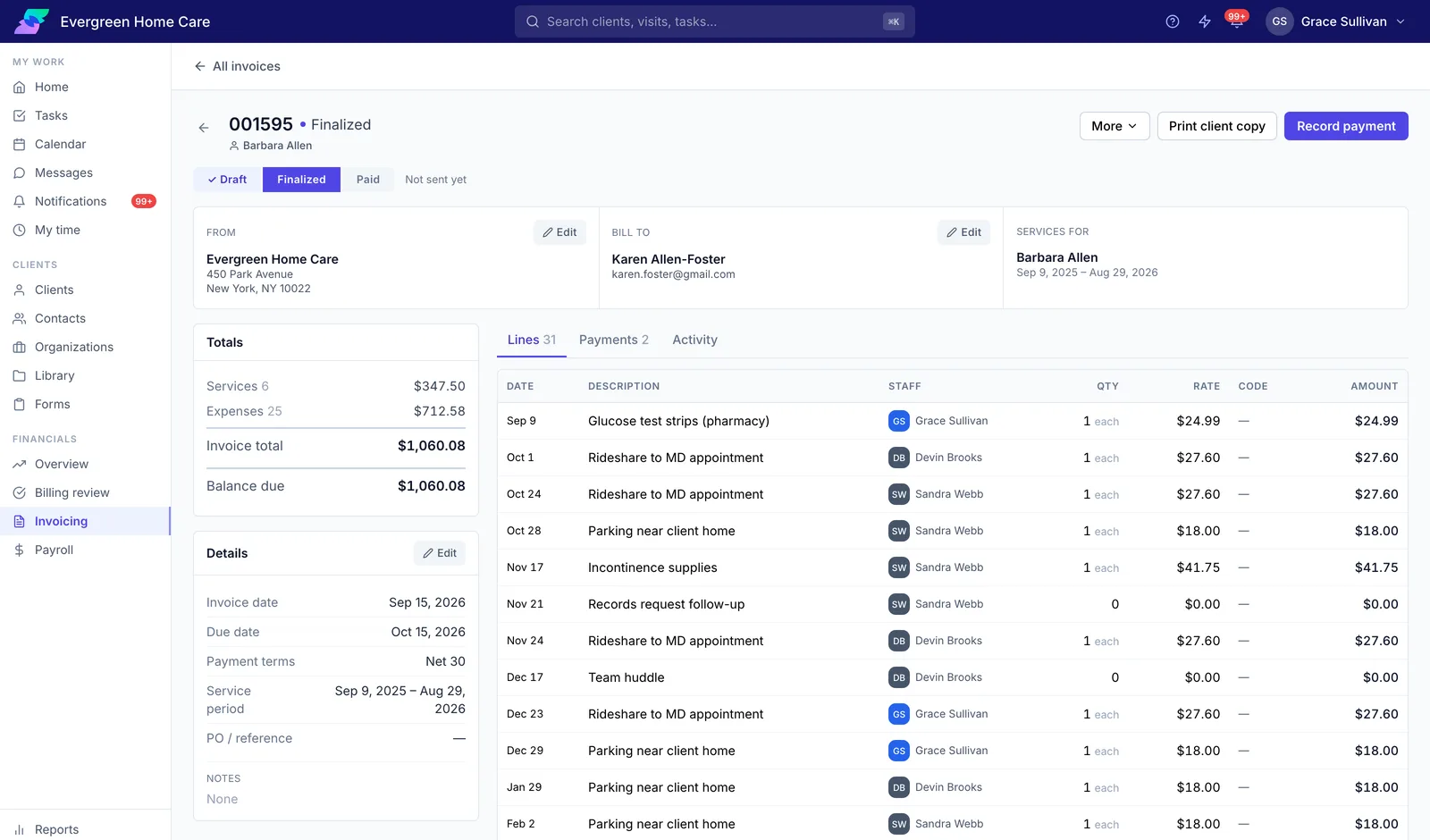
Navigate builds the invoice from locked time and emails it to the family as a PDF. Payments are recorded against it as they come in.
Pay for Care, Not Seats.
The price follows the hours of care you deliver in a month. On Team, everyone who touches a client gets a login at no extra cost.
An hour of care is logged service time. Travel and admin time do not count.
Everything in Navigate
Fifteen parts of the product, and what each one does.
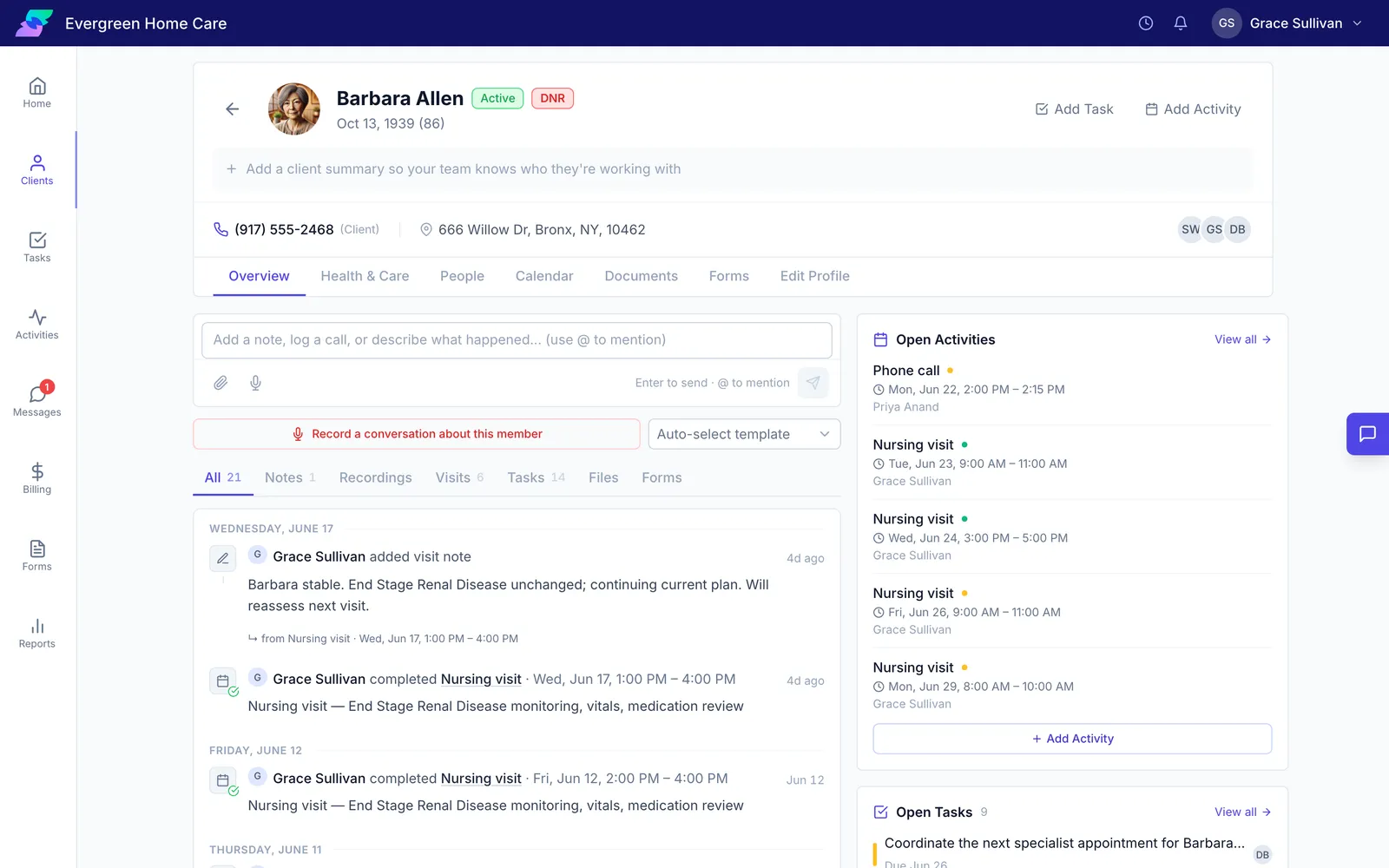
One record for each client, with everything the team knows about them.
- A timeline of notes, calls, visits, and files
- The care team, which also decides who can see the client
- Upcoming visits and open tasks next to the timeline
- Medical contacts, organizations, and family caregivers
- Logins for the client’s health portals, kept with the client
- A full export as a PDF or ZIP, with an access log for audits
Start a new client from the paperwork the referral sent.
- A six-step intake: details, files, review, people, first visit, first tasks
- Navigate reads face sheets, discharge summaries, medication lists, and insurance cards
- What it finds is proposed, and nothing is saved until you accept it
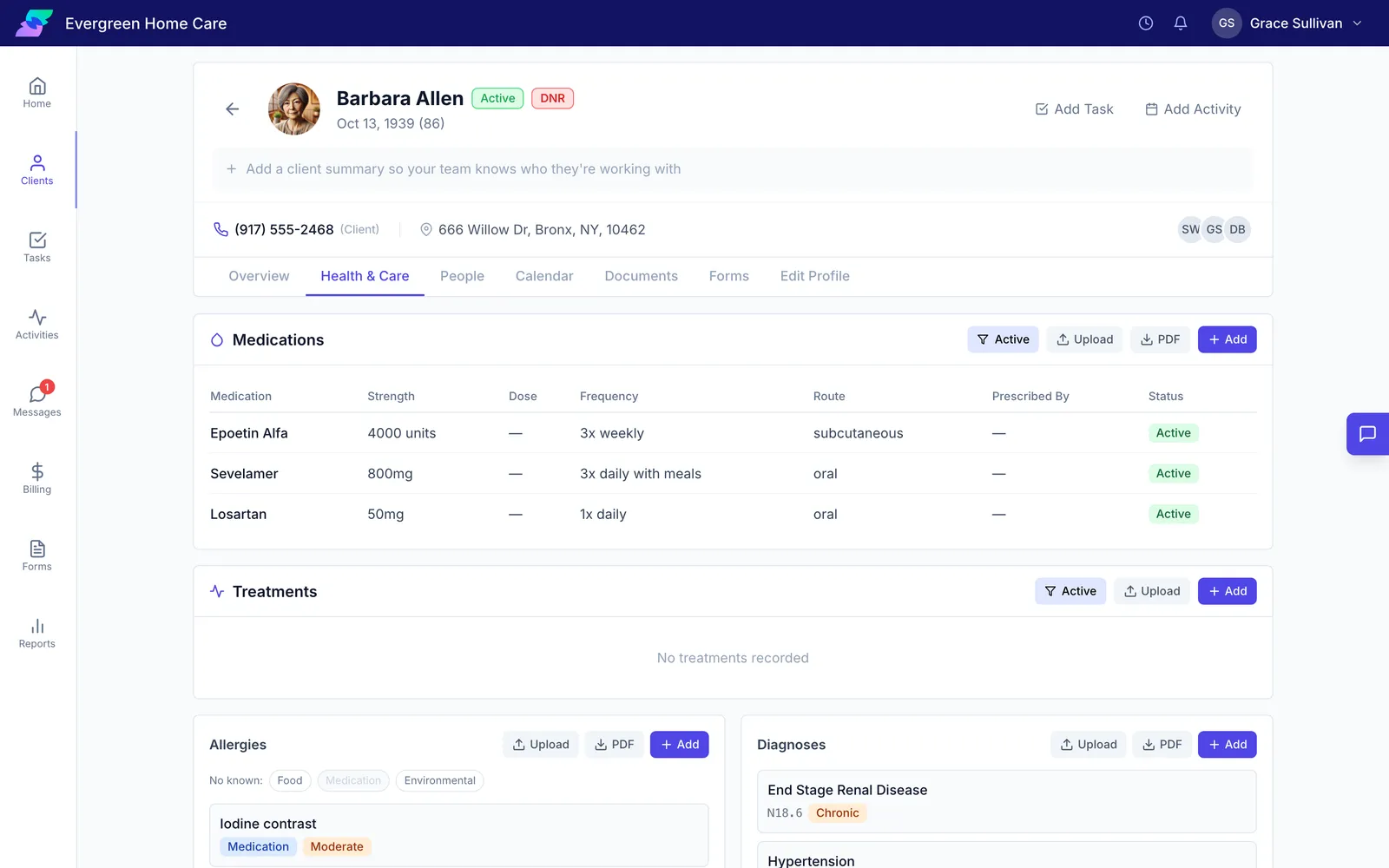
- Document folders for each client, with folders only some roles can open
- A whole caseload imported from a spreadsheet, with a preview and an undo
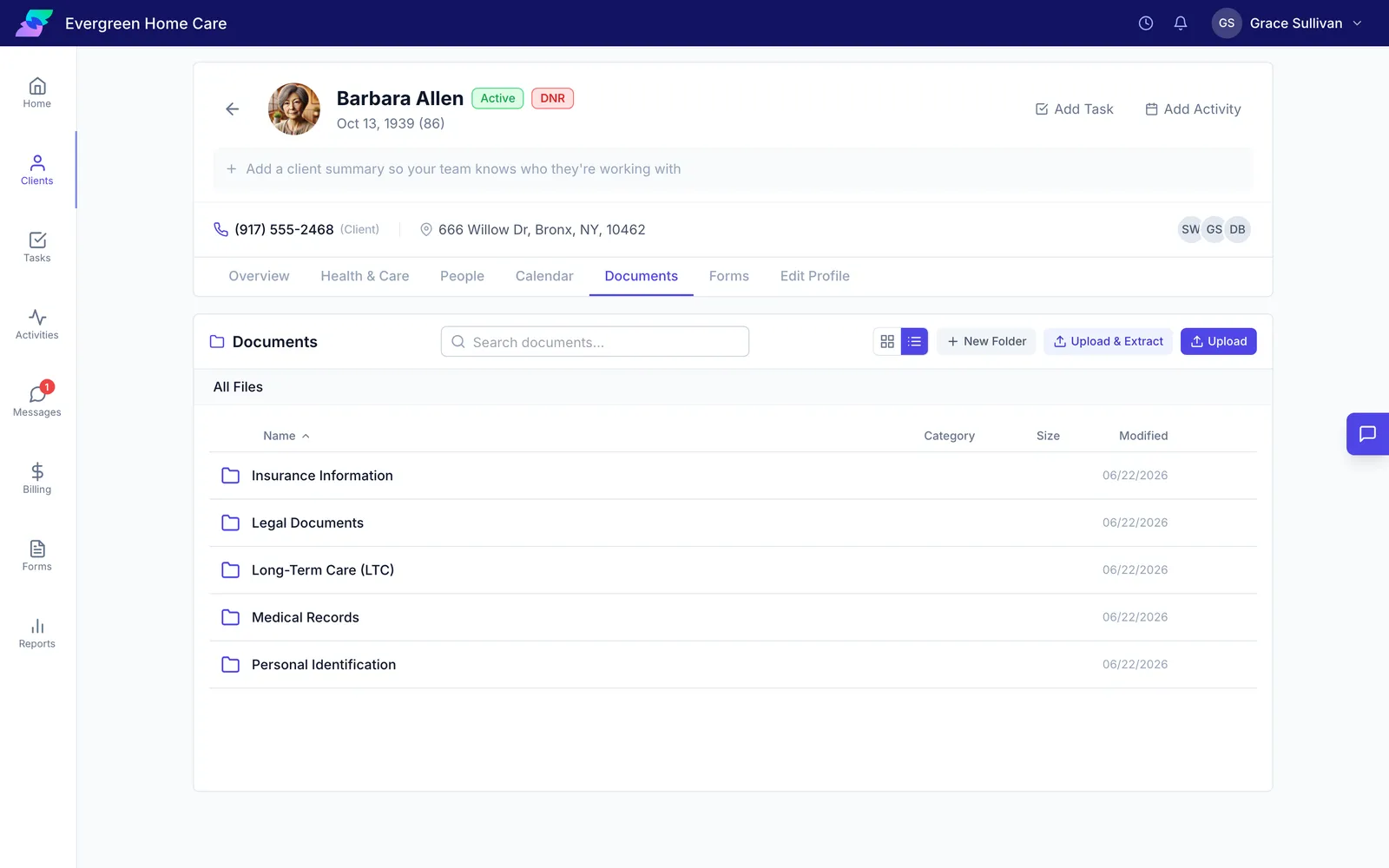
The clinical picture, in the order a care manager reads it.
- Medications, marked discontinued rather than deleted
- Treatments, allergies, and diagnoses
- Code status, diet, and other key health information
- Functional status and an ADL assessment
- Insurance, filled in from a photo of the card
One calendar for the whole team, with each person’s hours on it.
- Day, week, month, and list views, colored by status
- Filters for staff, team, client, visit type, and status
- A list of who is free, with conflicts and time off flagged
- Drag a visit to move it
- Visits that repeat on a schedule
- Staff accept or decline each visit, and a decline alerts the scheduler
- Visits sent to Google, Outlook, or Apple calendars, without client names
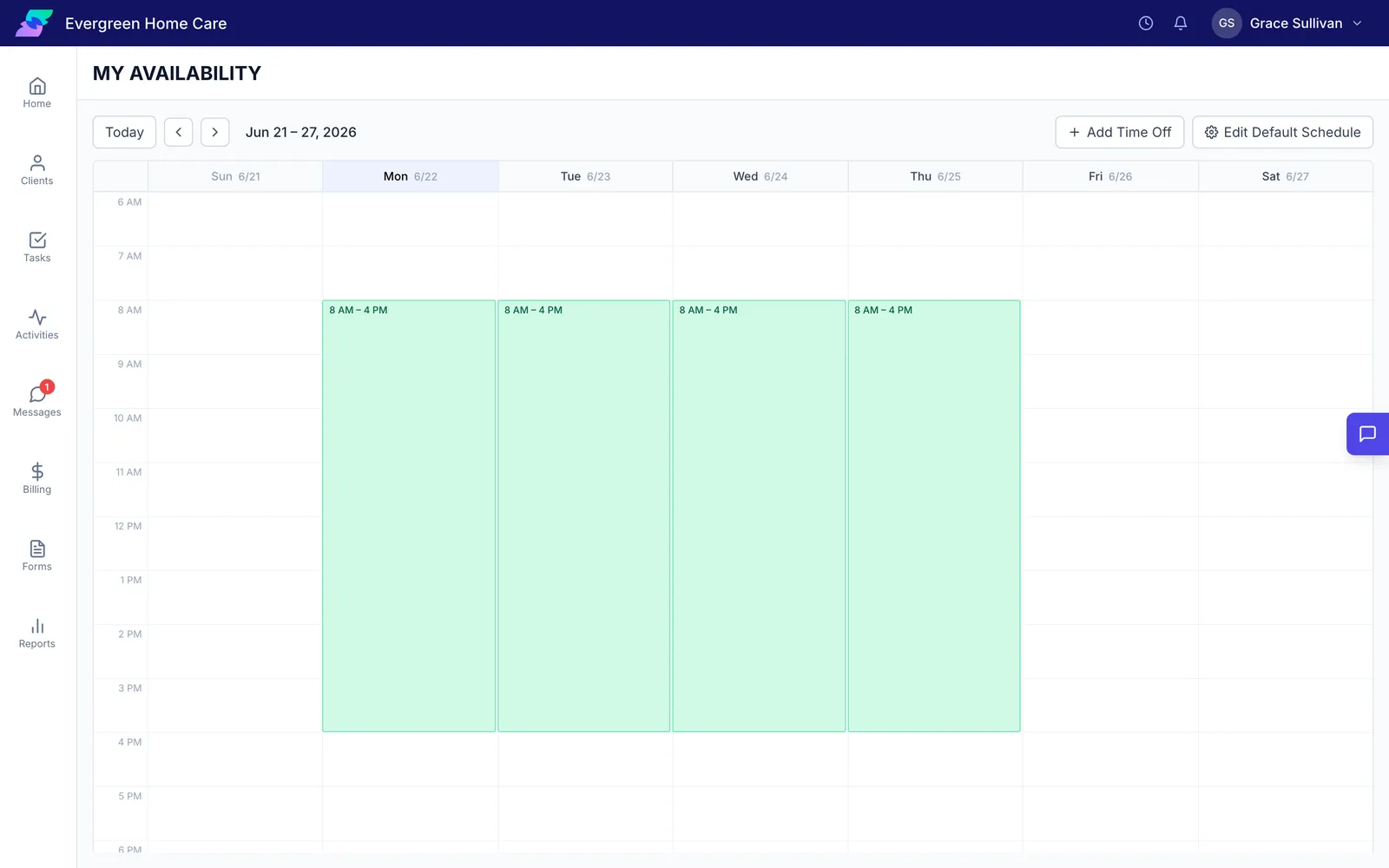
Each person sets when they can work, and the schedule uses it.
- Usual weekly hours
- Time off by type: PTO, sick, vacation, or appointment
- A one-day change without editing the whole week
- A team view of who is working when
- Busy times from a personal calendar, shown to the office
The field version of Navigate, on the phone a care manager already carries.
- The day’s visits and tasks, with overdue work at the top
- Check in and check out, with the time logged
- The client’s chart, contacts, and medications
- Record a visit, write a note, and log time
- Add a task by typing or speaking one sentence
- Messages and availability in the same app
- Nothing to download: it opens in the phone’s browser and sits on the home screen
Write the note yourself, or record the visit and review the draft. How recording works
- Notes on a client, a visit, or a task
- @ to mention a teammate, # to link a visit or task
- Recording from the client or the visit, on a computer or a phone
- A transcript with each speaker separated
- A drafted note from your own templates
- Suggested tasks and profile updates, each accepted or skipped
Everything that has to get done, sorted by when it is due.
- Your own queue, and the whole team’s list
- Grouped into Overdue, Today, Tomorrow, This Week, and Later
- Type a task the way you would say it, and Navigate fills in the client, type, and due date
- Tasks that repeat
- Tasks linked to the visit they came from
- Time and expenses logged on a task, the same as on a visit
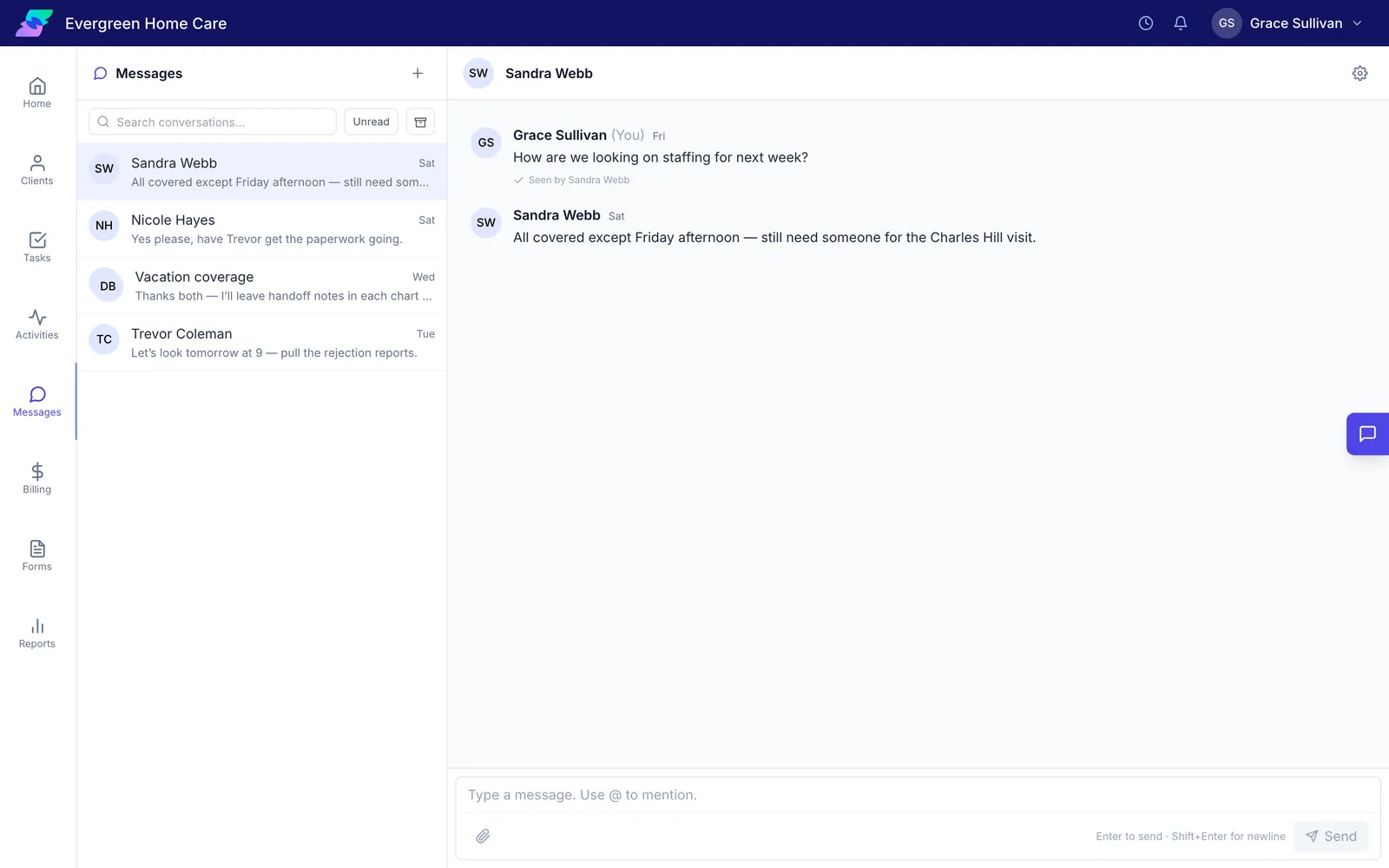
Team chat inside the system that already holds client information.
- One-on-one and group conversations
- @ mentions and file attachments
- Conversations about a single client
- Mute, archive, or mark unread
Every hour arrives with its billing code and rate, ready to check.
- Service, travel, and admin time
- Billing codes with dated rates, rounding rules, and GL codes
- Rates set for a client, a visit type, or the whole agency
- Travel time added when a visit is completed
- Expenses with receipts
- Locked entries that cannot change after billing
- Scheduled hours against logged hours, for payroll
Invoices built from locked time and emailed as a PDF.
- A Ready to Bill list of every client with work waiting
- Drafts you can change, with lines for fees and discounts
- Finalize to assign the number and email the PDF
- A client copy without billing codes or staff names
- Payments recorded one at a time, or in a batch from a bank statement
- Credit memos, voids, and write-offs, with nothing deleted
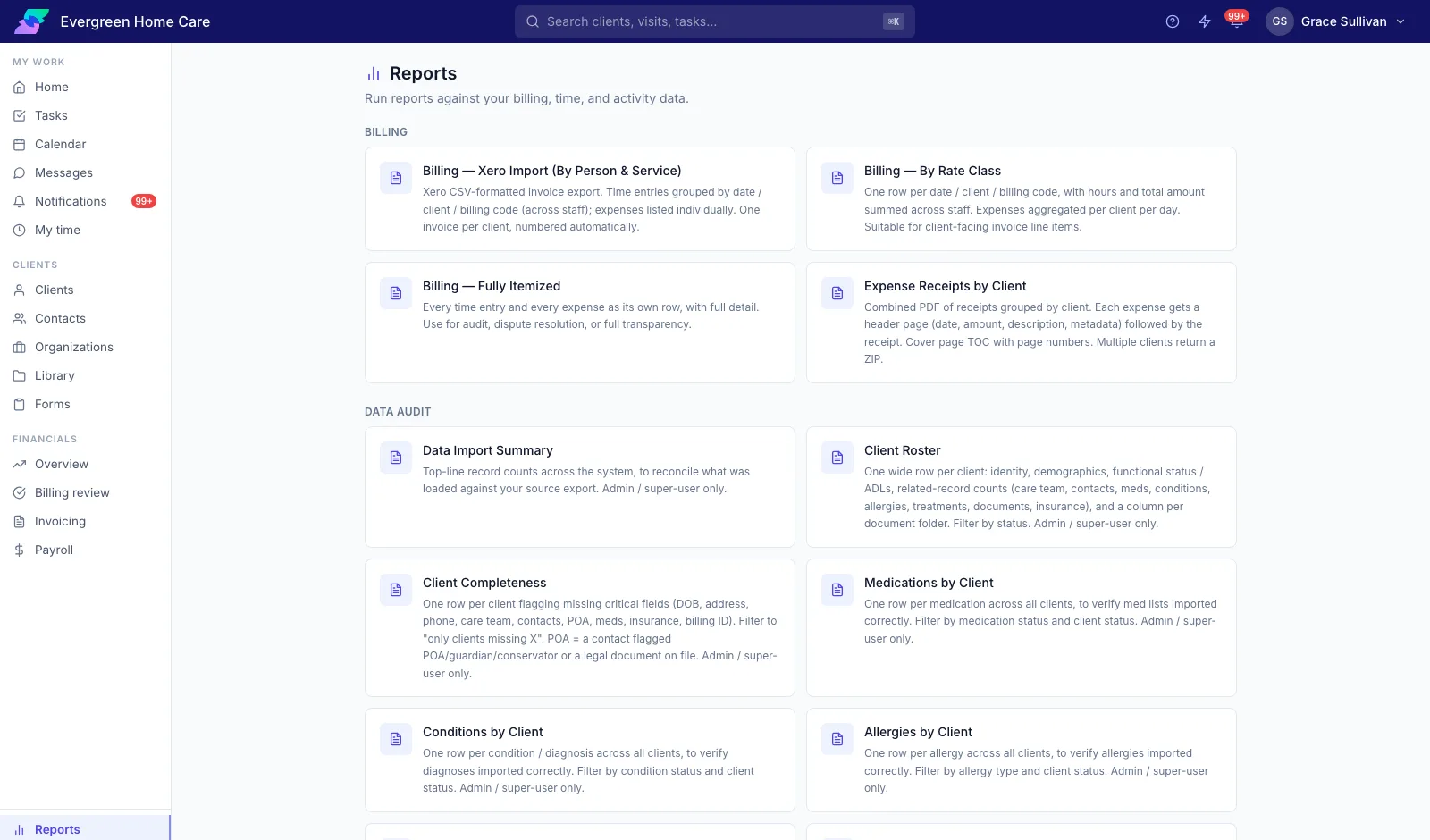
Ready-made reports for billing, leadership meetings, and audits.
- Invoice exports for Xero
- Billing by rate class, or fully itemized
- Expense receipts by client, as PDFs
- Hours by Client, compared with the month before
- Every visit, task, note, and time entry in one log
- Data checks: client roster, missing information, and medications by client
- Export to CSV or Excel
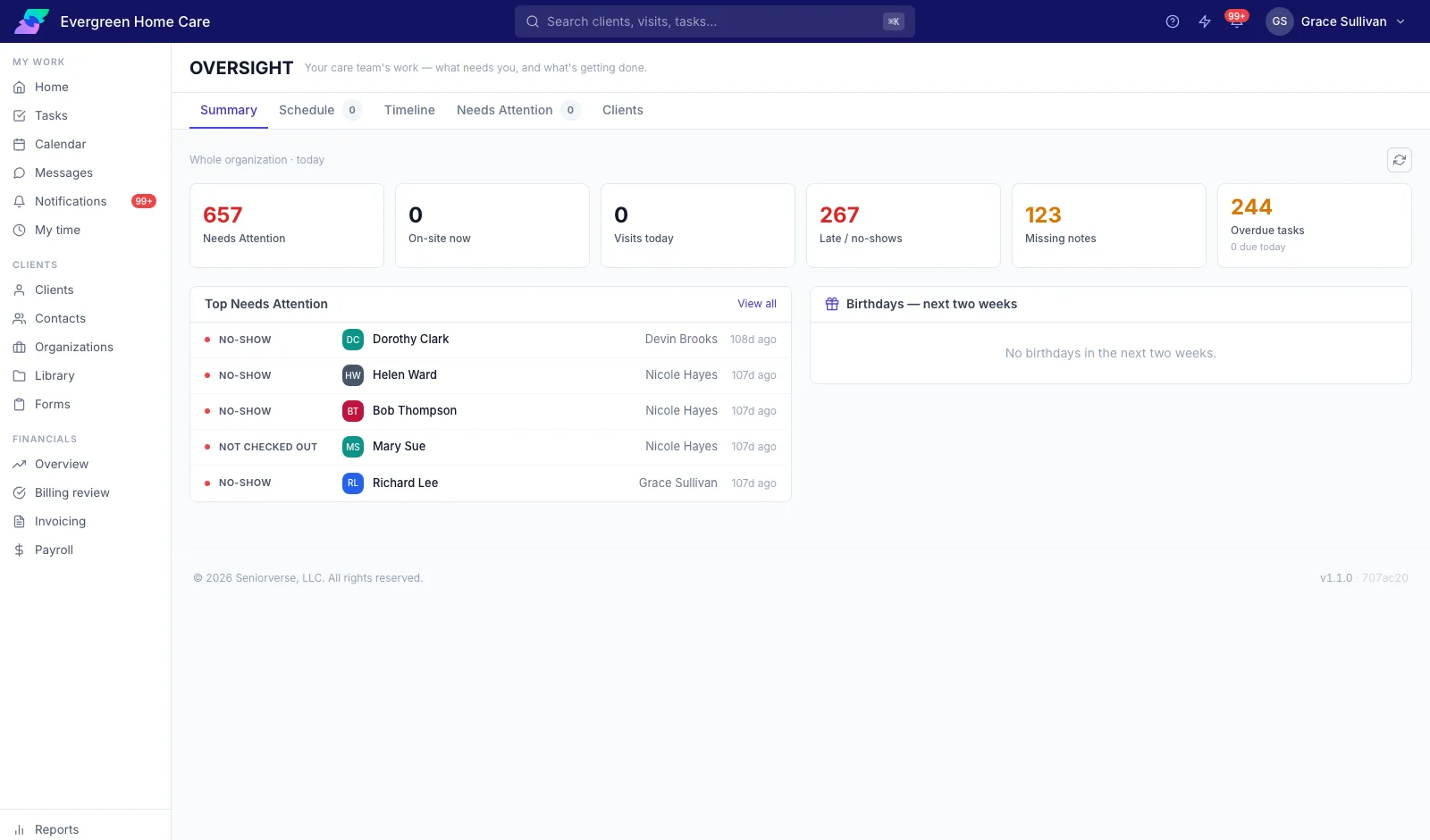
What the field is doing today, and what needs someone now.
- Who is on site right now, and since when
- Late visits and no-shows
- Visits missing a note or missing time
- Visits with nobody assigned, or nobody confirmed
- Clients nobody has been in touch with for a week
- A timeline of the day’s check-ins, notes, and completions
- Client birthdays for the next two weeks
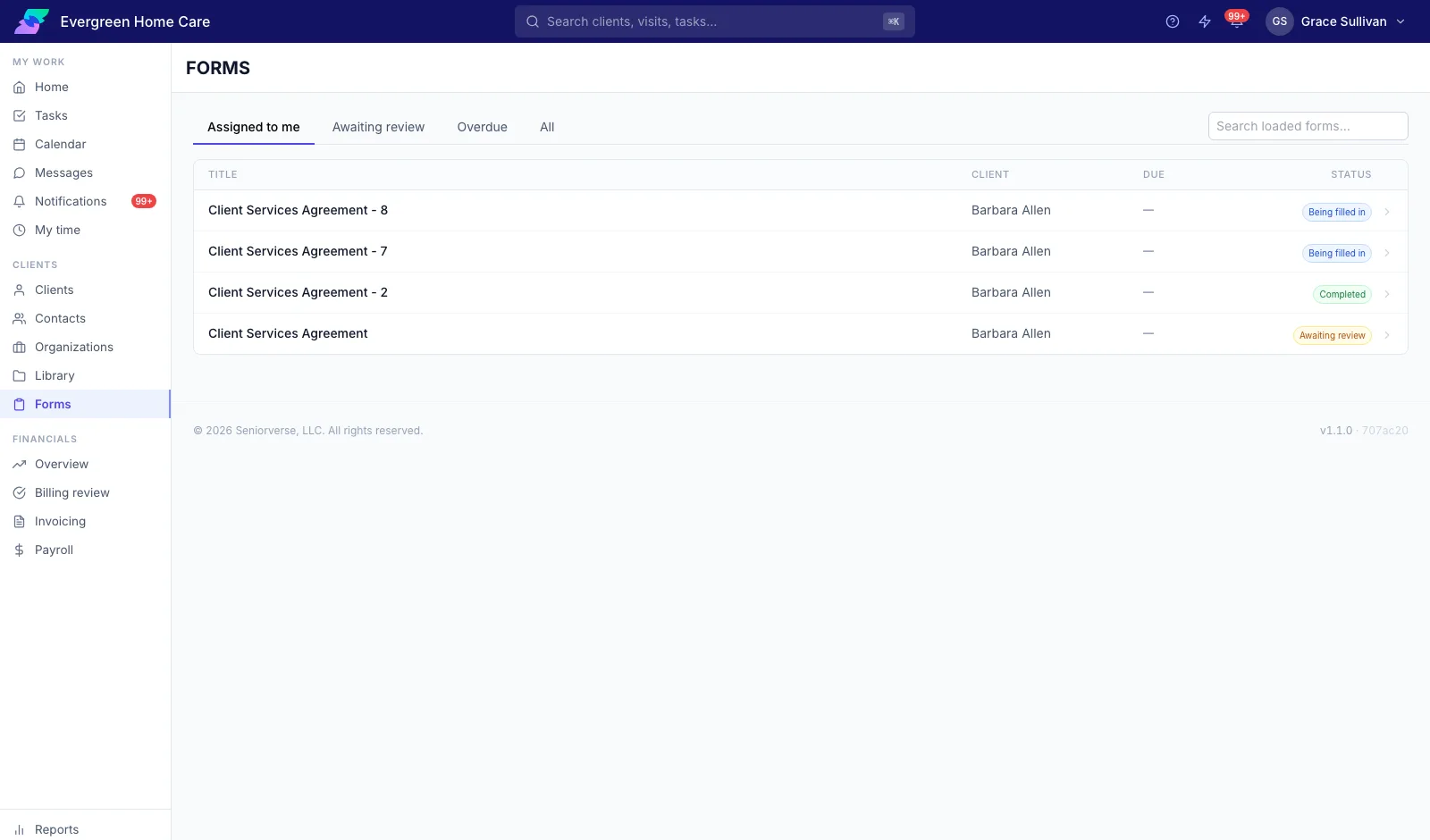
Your own intake forms, assessments, and agreements, with signatures.
- Forms built from pages, sections, questions, and signature lines
- Questions tied to fields on the client’s record
- Send a form for a client, or share a private link with a family member
- Choose who can view, fill in, or sign
- Each answer reviewed before it updates the chart
- A PDF of the finished form filed with the client
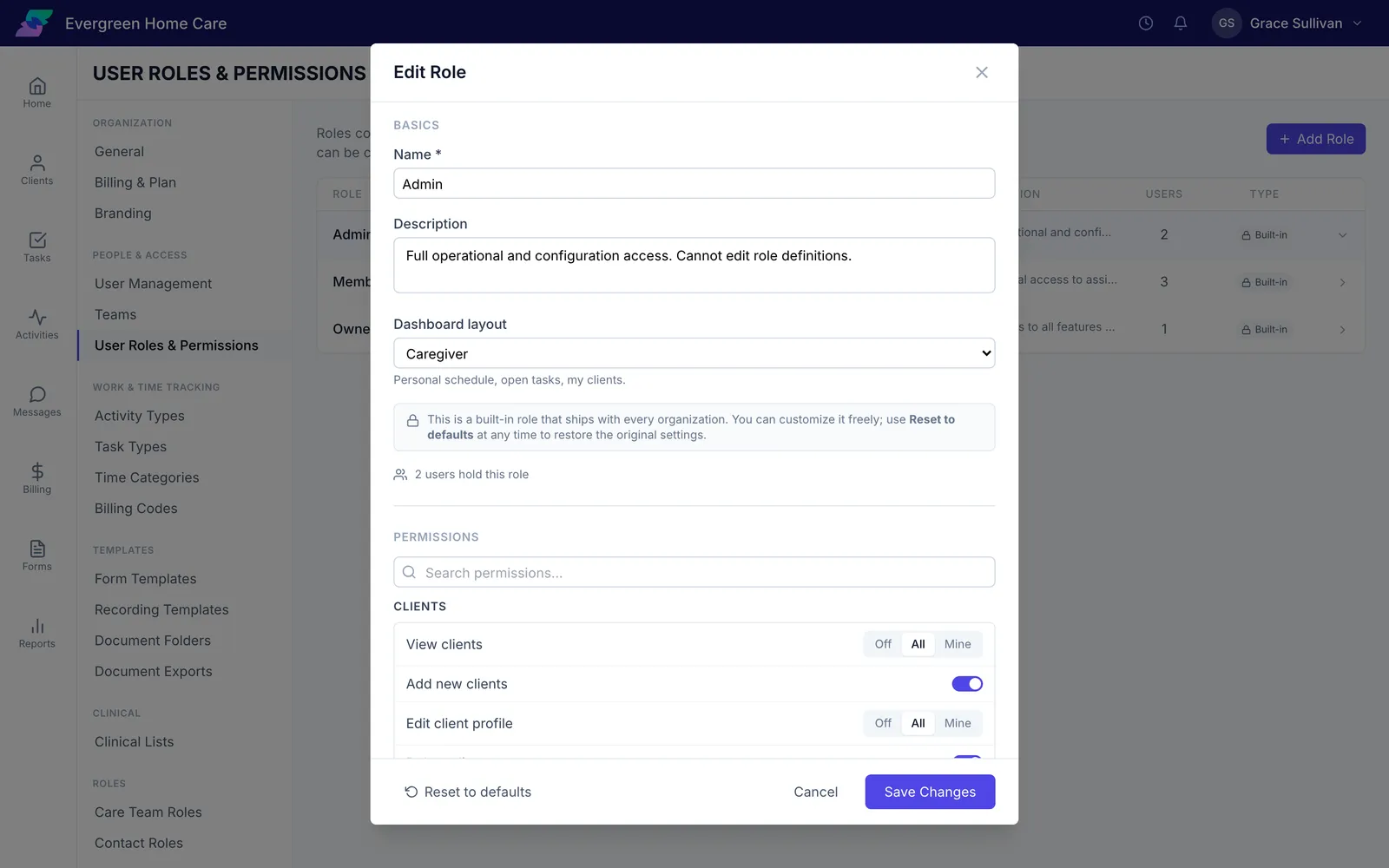
Navigate set up the way your agency works.
- Roles and permissions you define
- Teams
- Visit types, task types, and time categories
- Document folders and recording templates
- Option lists for diet, mobility, and other clinical fields
- Notification defaults
- Your own logo and sign-in page, on Enterprise


Questions About Navigate
Is there an app to download?
No. Care managers sign in from their phone's browser and land in the mobile app. Added to the home screen, it opens like any other app.
Does the client have to agree to a recording?
Yes. The app shows a consent line before recording starts, and the care manager confirms the client or their representative has agreed. Consent rules differ by state. Recording is optional, and a note can always be written by hand. How recording works
How do we bring our clients over?
Import them from a spreadsheet. Every row is shown before anything is saved, duplicates are flagged, and the import can be undone. New clients can start from their paperwork: drop in the face sheet or discharge summary, and Navigate proposes what it found.
Can families fill in and sign forms without an account?
Yes. Share a private link and choose whether each person can view, fill in, or sign. You can see who has opened, signed, or completed it.
Does it work with our calendars?
Yes, with Google, Outlook, and Apple. Each visit arrives as a calendar invite showing when and where, with no client names. Staff can also share their busy times so the office schedules around them.
Who can see a client's information?
The roles you set decide what each person can do, and the client's care team decides who can see that client. Folders can be limited to certain roles, and every client export is recorded.
Thirty Days Free, No Card Required
Import your clients from a spreadsheet and schedule your first visit today.